|
PayPal IPN Gateway: |
Method 1: Use to configure your existing PayPal Buy Now buttons individually for each TrepStar product you are selling.
- If you're an eBay seller, Click Here for more information.
- Turn on PayPal IPN (instant payment notifications) if you have not already done so:
- Login to PayPal.
- Across the top right corner menu, choose 'Account Settings' from the menu.
- Choose 'Notifications' and 'Update' the Instand payment notifications.
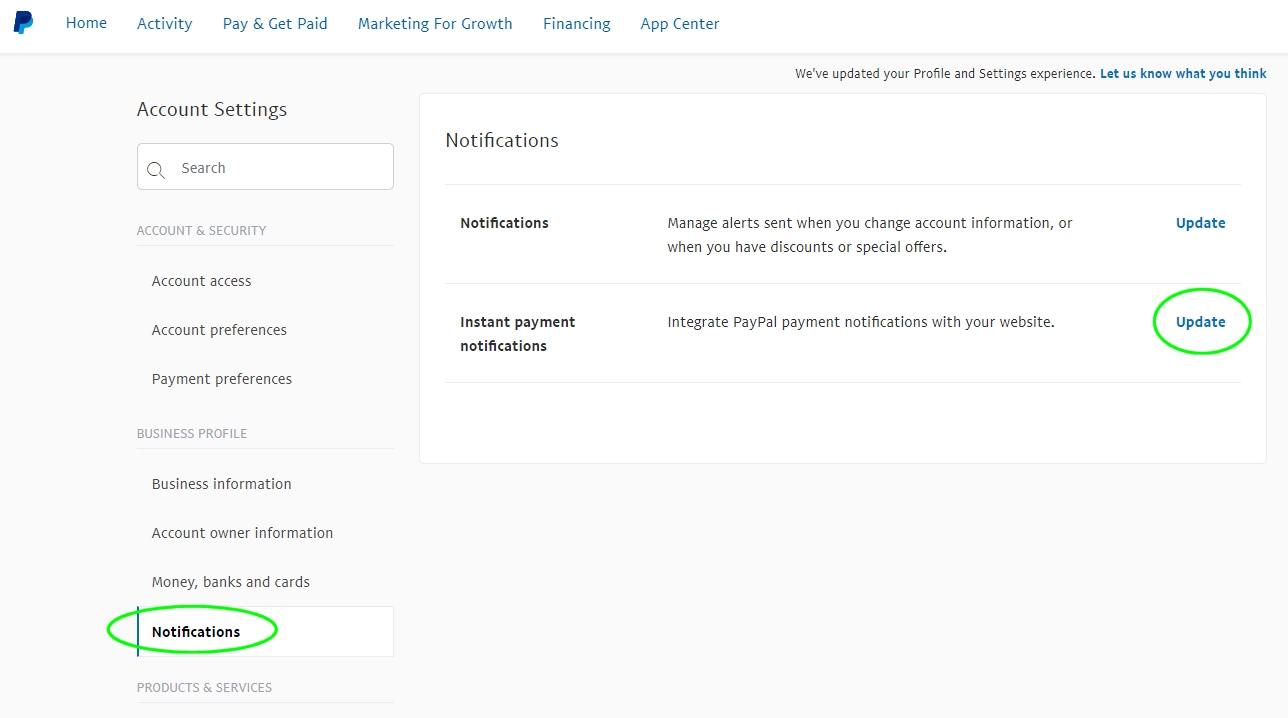
- Set the Paypal notification URL to https://www.trepstar.com/ipn.asp.
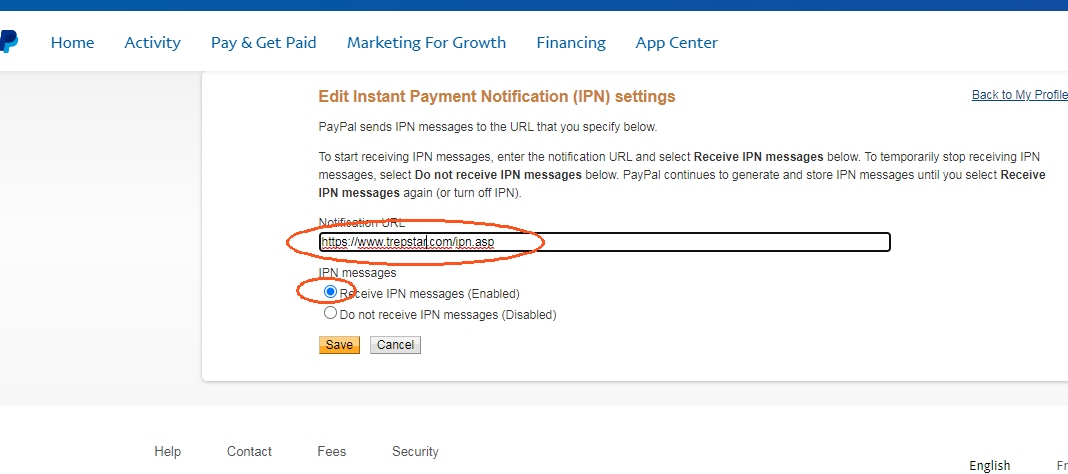
- If you ALREADY have this set to a different URL for a previous integration with a different company, just leave that alone. IPN is turned on
simply by having a url set. The important part is configuring each buy now button to specify the correct "notify_url" which will point to the TrepStar
site with the correct product id.
- Edit or create your PayPal Buttons that correspond to a TrepStar product to set the notify_url:
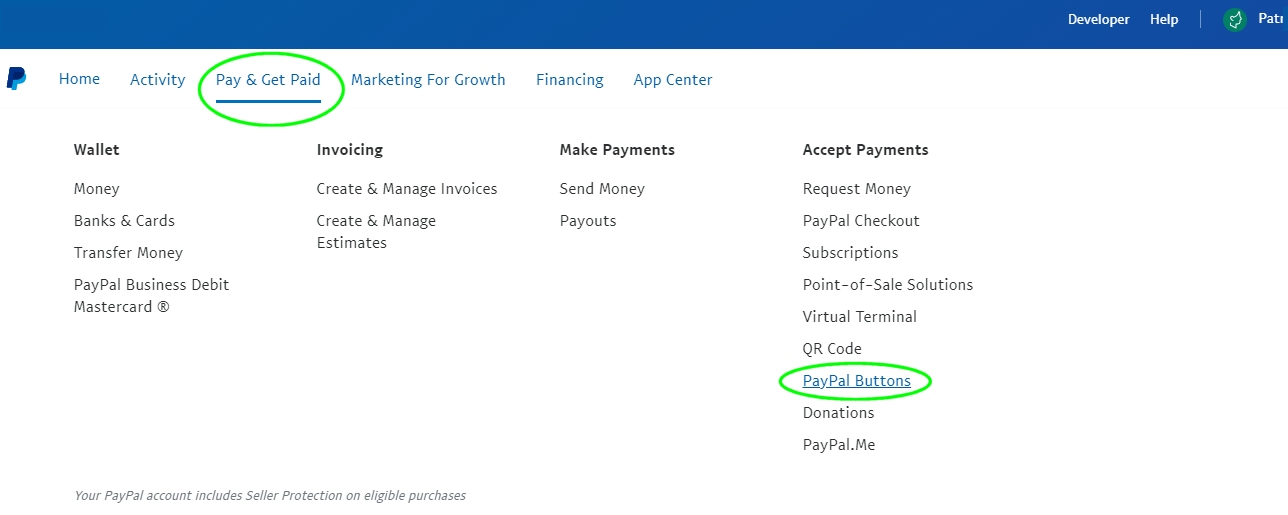
- Click the Advanced Variables section (of the button edit screen).
- Add the notify_url with your TrepStar projectID.
- The notify_url you put on the advanced variables of your PayPal button(s) is https://www.trepstar.com/ipn.asp?productid=XXXX where xxxx is your unique product ID number assigned by our system (look at your TrepStar project and see what your Project ID is set to).
- If two or more TrepStar products go together as a set using one Paypal buy now button, just string your Project IDs together. For example, the notify_url you put on the advanced variables of your PayPal button might look like https://www.trepstar.com/ipn.asp?productid=100220x100230x100240 where in this case, this order will cause us to produce and ship project IDs 100220,100230, and 100240 together in the same box to the single address.
- Be sure your button is configured to ask for customer shipping address data or none of this will work.
- Optional Shipping Method: By default, standard first class shipping with tracking will be used.
If you want to offer other methods, you can set up different buttons
for different shipping methods by adding a parameter named trepstarshipping. For example, you could make your button notify_url look like
https://www.trepstar.com/ipn.asp?productid=XXXX&trepstarshipping=shipmethod where shipmethod is set to
standard, rtrackstandard, priority, or express. rtrackstandard means standard first class mail + tracking with email. Express is for the 'Priority-Express' mail class which is faster than 'Priority'.
Method 2: Use the following method if you can't easily edit each of your PayPal buttons. You will have to configure each TrepStar project instead.
If you sell mostly on eBay Click Here.
Using this method, TrepStar must be the globally set IPN url. Currently, PayPal only allows one IPN notify URL per account. This means you can't use TrepStar and another company at the same time for IPN order data. If you already have a different company listed in the IPN section, you need to use method 1 above.
- First, set TrepStar as the paypal IPN URL by configuring the global Paypal IPN url.
- To set the PayPal global IPN url:
- Login to PayPal.
- Across the top right hand corner where your name is, hover over the menu and choose 'Account Settings'.

- Choose 'Notifications' and 'update' the Instant payment notifications.
- PayPal provides a global Notification URL. Set the Notification url to https://www.trepstar.com/ipn.asp for the IPN url.
- NOTE: If you already have a global IPN Notification URL set to a different site, there is no way to use this integration.
- This will turn on PayPal IPN and your order data will come to the TrepStar order system when someone purchases from your site via PayPal.
-
Next, the section below describes how you will need to configure each of your TrepStar products and
set the correct eCommerce String. This tells our system which PayPal orders
are related to which products on our system.
We will receive that order data, and we will match the eCommerce String set within your TrepStar.com project.
-
Configure your TrepStar Project by setting the TrepStar eCommerce ID Advanced variable to a combination of the PayPal item number and item name:
- Take note of your PayPal item number and item name.
- Combine them to create the TrepStar eCommerce ID:
- The TrepStar server looks for a combination of item number : item name. For example:
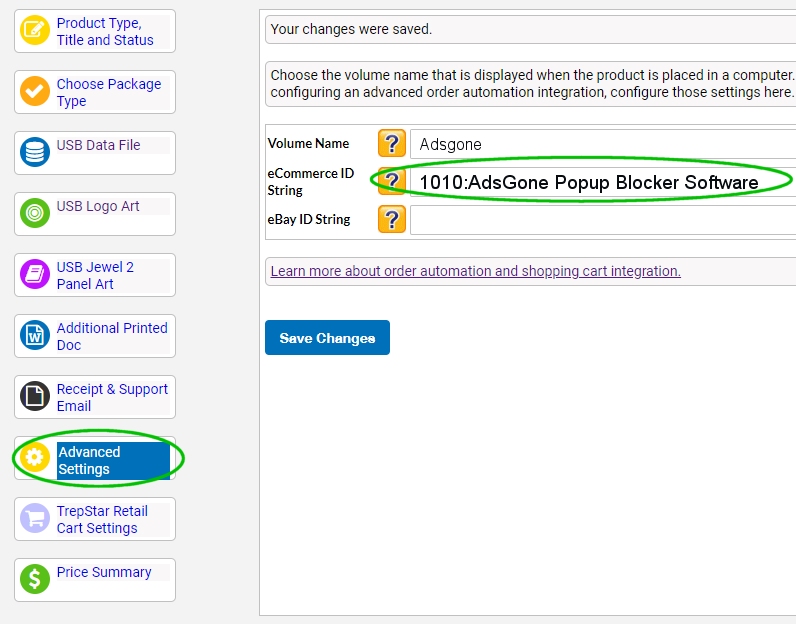
- If the PayPal item number was 1010 and the item name was AdsGone Popup Blocker Software
- Then the TrepStar Project eCommerceID string value would be 1010:AdsGone Popup Blocker Software (separate them with a : character with no extra spaces).
- Login to TrepStar and configure your TrepStar.com project eCommerce ID:
- On the left column there is an 'Advanced Settings' section. Within that section, you'll see the "eCommerce ID String" field. This is where you place this string e.g. 1010:AdsGone Popup Blocker Software (but use your item number:item name).
- If you're not sure what your item number and item name are, turn on IPN anyway. When an order goes through, see if you get an email from us.
- Also, you can check your IPN history to see if any IPN data was sent (login to the PayPal IPN section for a report).
- If you wish, send us an email to help@trepstar.com with your publisher ID and product title and any other information about the order you can give us. We will try to look at recent IPN data calls to see if we can find your IPN data and show you how to fix it.
- The TrepStar server looks for a combination of item number : item name. For example:
NOTE: Your PayPal buttons must be configured to ask for customer address data. Most likely they already do. If address data is not collected, PayPal can not possibly pass that data to us. Thus, TrepStar can not ship the product anywhere.
NOTE: eBay Sellers: Each time you relist, the item number changes. Therefore, we have a way to supply just the eBay product Title so you don't have to change it each time you relist. If you sell on eBay, Click Here for eBay instructions.